Connect Aperium to Slack channels, messages, files, and search through OAuth.
The Slack Workspace integration lets users link their personal Slack account to Aperium so agents can read channels, search messages, send chats, and work with files on behalf of that user. Setup happens in two places: create a Slack app at api.slack.com and configure its OAuth scopes, then paste the credentials into the Aperium admin onboarding flow or the Admin Console’s MCP Servers tab.
Aperium uses user tokens (not bot tokens). Each user authenticates with their own Slack account, and Aperium operates under their identity and permissions. You do not need a bot user, event subscriptions, slash commands, or interactivity for this integration.
Channels & people — search channels, users, and channel members
Messages — search channel and thread history, run a workspace-wide message search
Files — search files and read file detail
Signals — user presence and message reactions
Write — approval-gated
Send a message to a channel or DM
Reply in a thread
Update an existing message
Add a reaction
Upload a file
Every write tool is approval-gated. When an agent proposes a message, reply, edit, reaction, or upload, Aperium pauses and shows the exact payload for a human to approve before it posts. Reads run without a prompt. Because Aperium uses the user’s own token, a write posts as that user, and an agent can only reach the workspace the user linked.
For local development, use http://localhost:8080/api/v1/slack/auth/callback.Click Add, then Save URLs.
4
Add the User Token Scopes
Stay on OAuth & Permissions and scroll to Scopes. Aperium uses user tokens only, so add every scope below to the User Token Scopes list. Leave the Bot Token Scopes list empty.Channels and conversations
channels:read
groups:read
im:read
mpim:read
History
channels:history
groups:history
im:history
mpim:history
Search
search:read (user token only)
Messaging
chat:write
Files
files:read
files:write
Users
users:read
Reactions
reactions:read
reactions:write
Aperium requests these scopes incrementally during the OAuth flow based on which tools a user uses, so users only see the prompts they actually need.
5
Install the app to your workspace
Still on OAuth & Permissions, scroll to the top and click Install to Workspace. Review the requested permissions and click Allow. This generates the OAuth credentials you’ll paste into Aperium in the next step.
6
Paste the credentials into Aperium
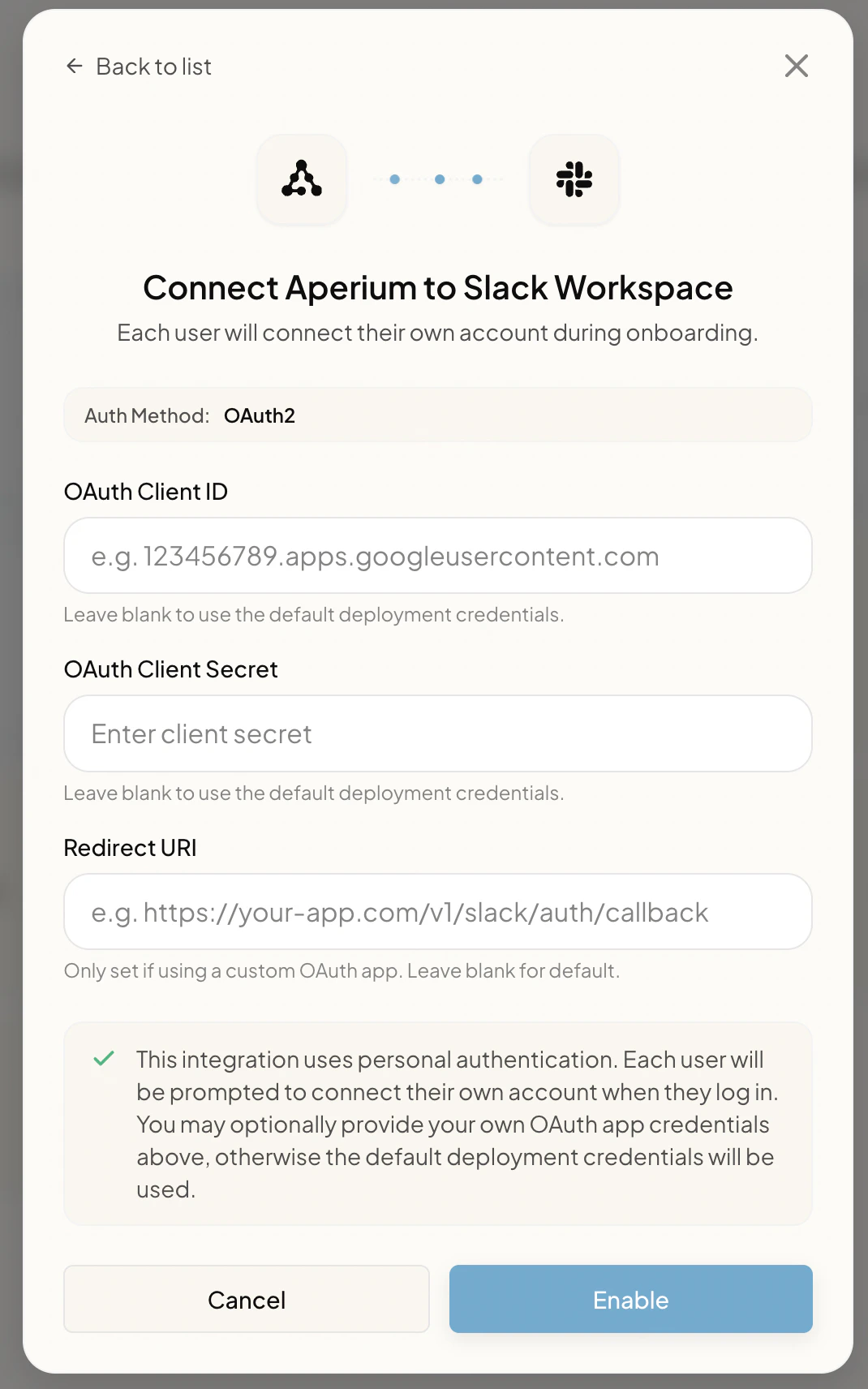
Open Aperium and go to either the admin onboarding flow (first sign-in) or the Admin Console’s MCP Servers tab (any time after). Open the Connect Aperium to Slack Workspace form and fill in:
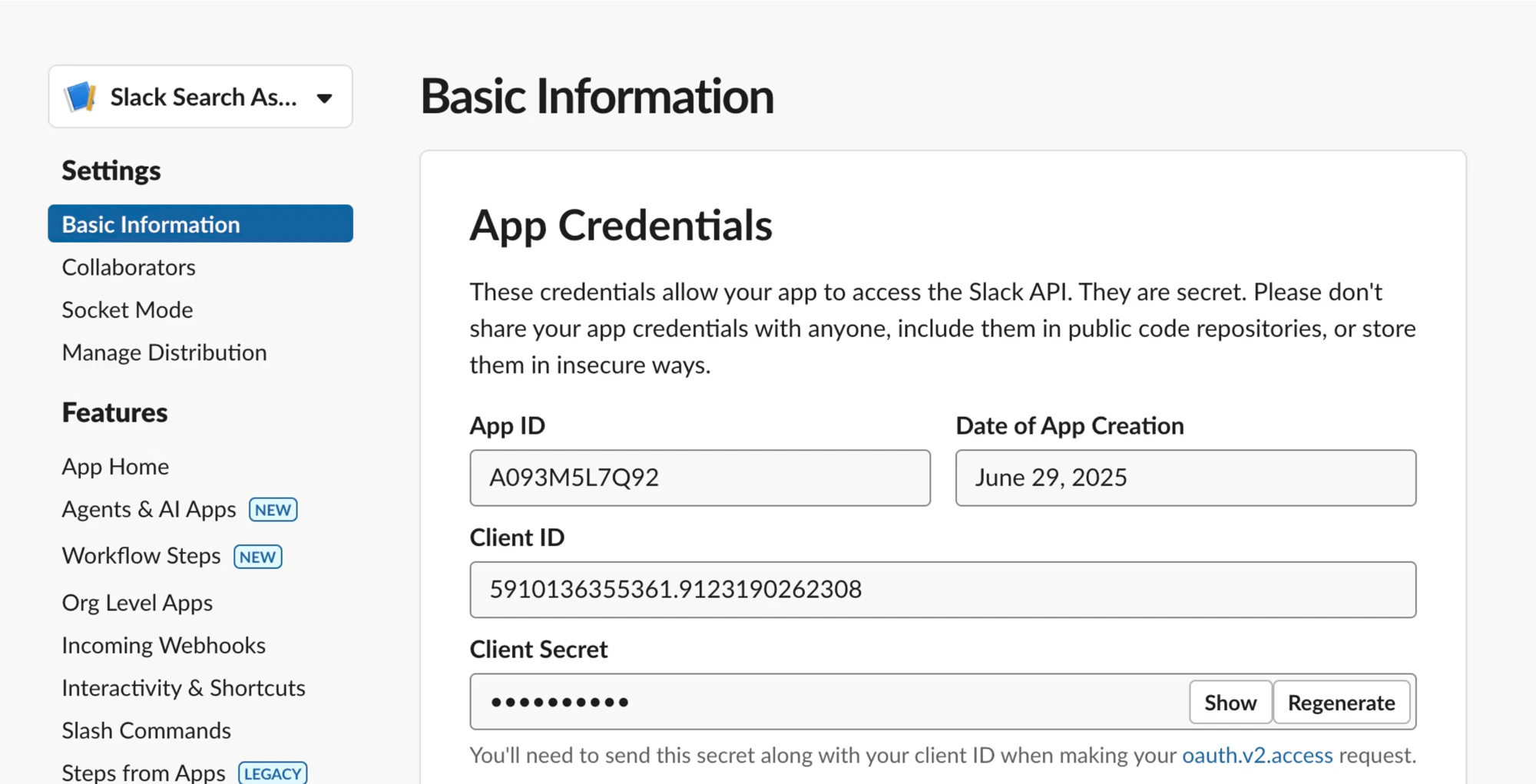
OAuth Client ID. The Client ID from the Basic Information page in step 2.
OAuth Client Secret. The Client Secret from the same page.
Redirect URI. The same redirect URI you registered in step 3 (for example https://<your-aperium-domain>/api/v1/slack/auth/callback).
Click Enable. Once saved, every user can link their personal Slack account from the Integrations page.
The Connect Aperium to Slack Workspace form in the admin onboarding flow.
After admin setup is complete, users land on the Connect your tools page (during onboarding) or the Integrations page (any time after). They click Link Account on the Slack Workspace tile, are redirected to Slack’s consent screen, review the requested scopes, and click Allow to finish linking.Users can link more than one Slack workspace if they belong to several; each workspace is tracked as a separate connection.
Enterprise Grid. No extra app configuration is required for Enterprise Grid customers. Aperium detects an Enterprise Grid workspace from the token response after OAuth and tags the connection accordingly. You don’t need to distribute the app, set up federated identity, or change the app’s installation model.
App distribution. Because user tokens are workspace-scoped, you don’t need to publish the app to the Slack App Directory or enable distribution. Keep the app private to your workspace.
Bot tokens. Aperium does not use bot tokens. If you accidentally add scopes under Bot Token Scopes, the integration won’t use them; remove them to keep the consent screen clean for users.