The example below walks through connecting Google Workspace as an admin and then linking a personal account as a user. The same general process applies to all integrations.
1
Pick the categories of tools your company uses
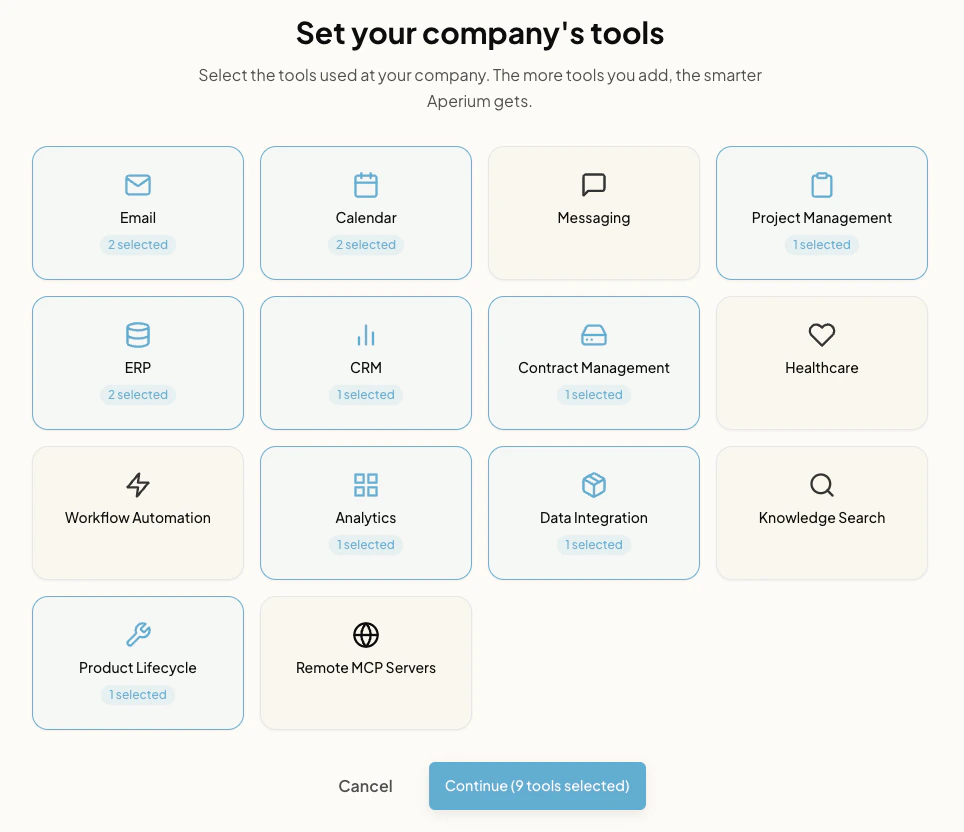
On first sign-in, an admin lands on Set your company’s tools. Each tile is a category. Click any category your team uses (Email, Calendar, ERP, CRM, and so on) to open it.
Selecting tool categories during admin onboarding.
2
Open the category modal
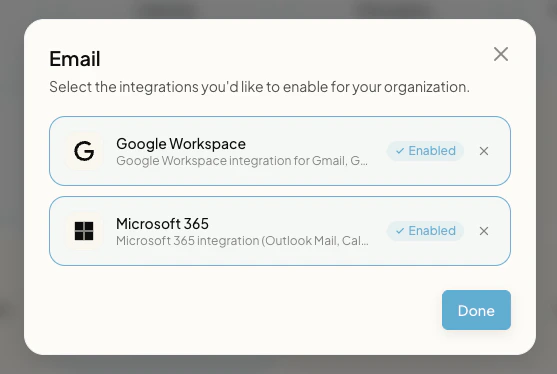
Clicking a category immediately opens a modal listing the integrations available in that category.
The Email category modal with Google Workspace and Microsoft 365 listed.
3
Configure each integration you want to enable
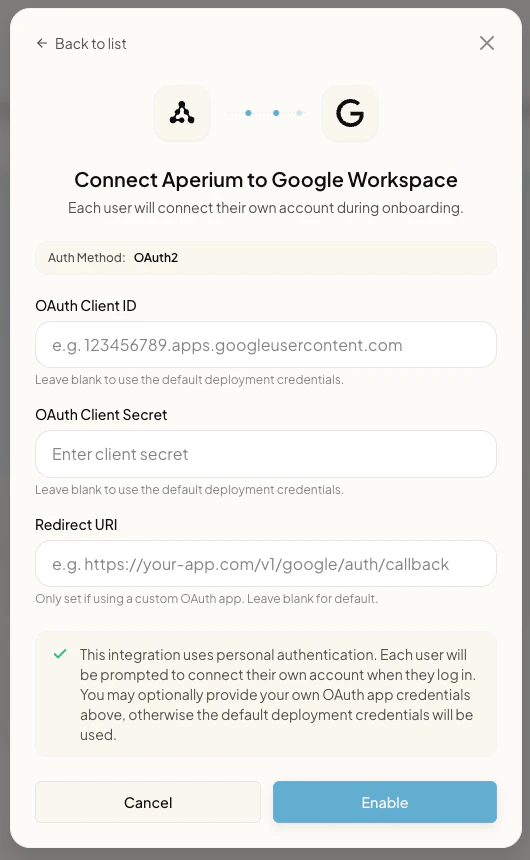
Inside the modal, click the integration you want to set up. A configuration form opens for that integration. Each integration requires a different set of credentials and fields, so the form changes based on which one you picked. In this example, configuring Google Workspace asks for the OAuth Client ID, OAuth Client Secret, and Redirect URI. Fill in the fields and click Enable.Repeat for every integration in the category, then click Done to return to the category list.
Configuring the Google Workspace OAuth client during admin onboarding.
4
Each user links their own account
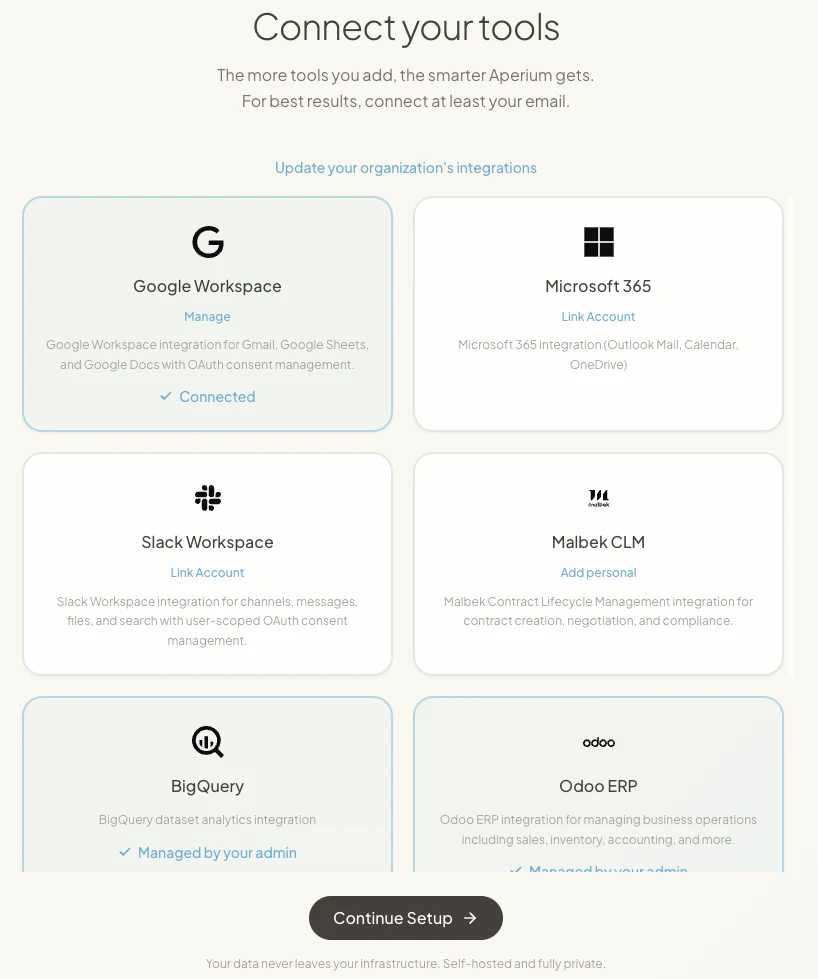
After admin setup is done, every user sees a Connect your tools page. OAuth integrations show Link Account; tenant-wide integrations show Managed by your admin; integrations that accept personal tokens show Add personal.
The user-side Connect your tools page after admin setup.
5
Approve the OAuth consent screen
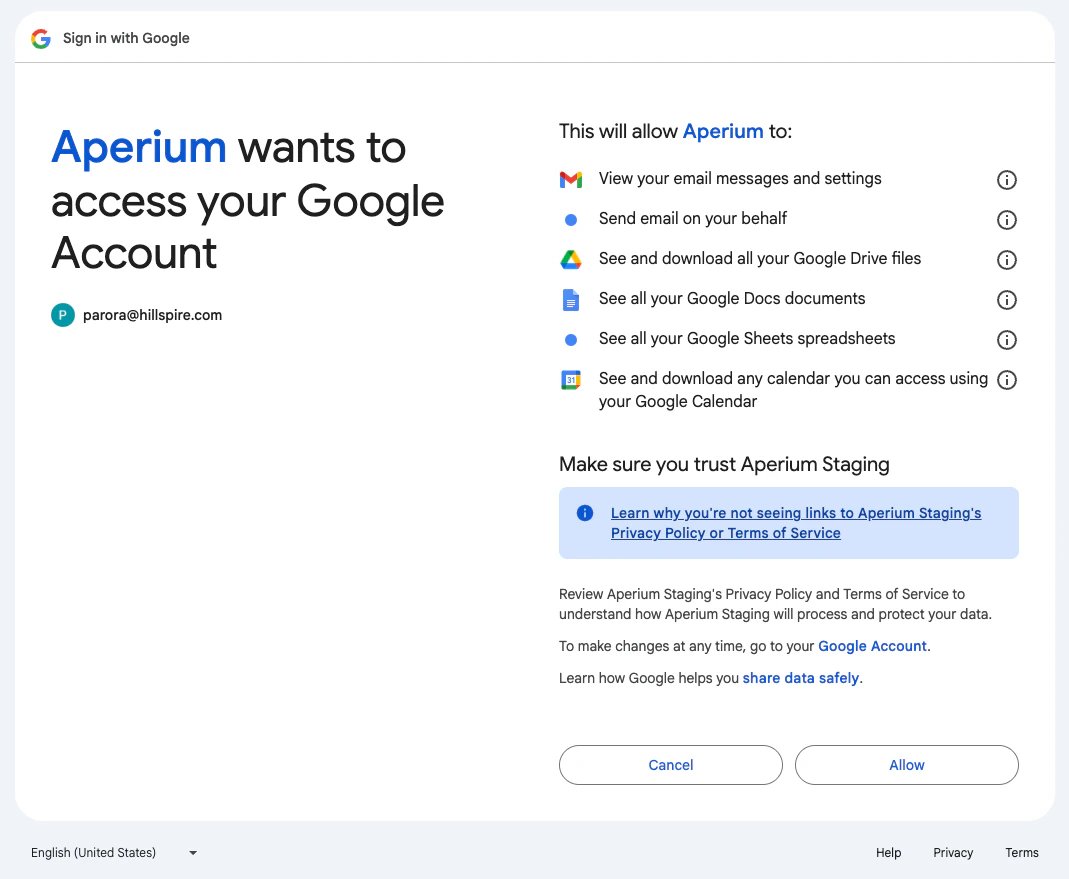
Clicking Link Account for an OAuth integration redirects the user to the provider’s consent screen. The user reviews the requested scopes and clicks Allow to finish the link.
The Google OAuth consent screen requesting access for Aperium.
Aperium ships 23 user-facing connectors, grouped by who supplies the credentials. In every case, an admin enters configuration through the admin onboarding flow the first time they sign in or through the Admin Console’s MCP Servers tab at any point afterward. Credentials are stored against the tenant in Aperium’s database, not in environment variables.
A handful of tools are always-on platform utilities that load into every agent automatically. They aren’t connectors, take no credentials, and never appear in the setup flow — you’ll see their tools in agent context without configuring anything.
OAuth integrations
Each user links their own account through an OAuth flow. The admin configures the OAuth client once (client ID, client secret, redirect URI). After that, each user clicks Connect on the Integrations page and consents to the requested scopes.Examples: google_workspace, slack_workspace, atlassian, microsoft365, github, notion, procore, greenhouse, netsuite_mcp.
Configured tenant-wide integrations
An admin enters one set of credentials and every user in the tenant shares the same connection. No per-user setup is needed.Examples: arena, malbek, prefect, bigquery, postgres, gcs_datalake, epic, qdrant_contracts.
Tenant-wide integrations with personal tokens
An admin sets up the integration at the tenant level, and individual users supply their own token, key, or username/password. This comes in two flavors:
Required personal token. Each user must add their own credential before they can use the integration. The admin enters the tenant-level configuration (for example, the base URL); each user then adds a personal access token. Examples: onyx, and the experimental confluence_dc and jira_dc Data Center connectors.
Optional personal token. The tenant-wide configuration works for everyone with a default permission set, but users can choose to add a personal token if they want different access (for example, scoped to their own permissions in the upstream system). Examples: odoo, salesforce, netsuite.
A few connectors are experimental — confluence_dc, jira_dc, and omni (the Onyx knowledge search connector). They work but are still stabilizing; treat them as preview and verify behavior before relying on them in production workflows.
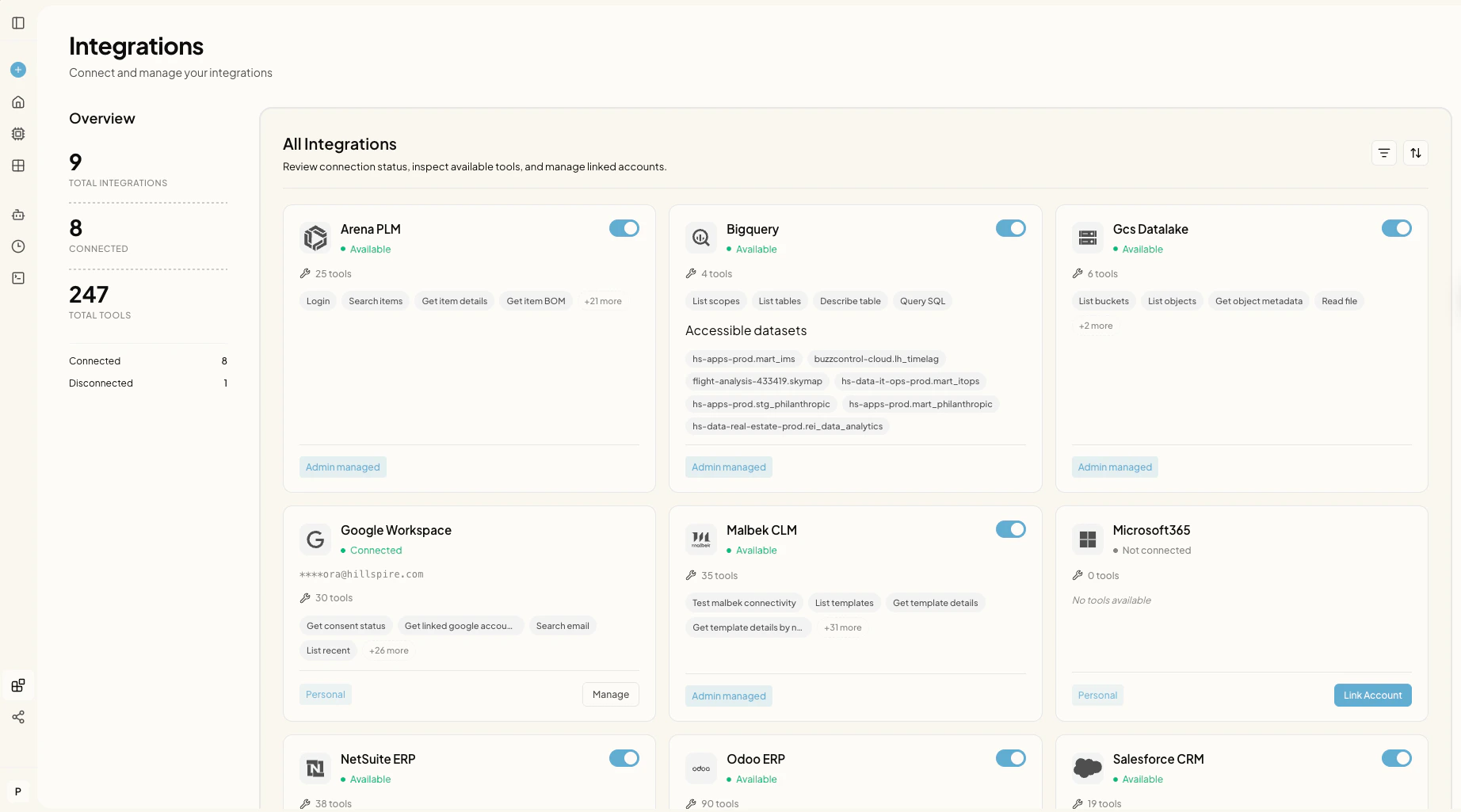
Integrations page (/integrations). Available to every user. Shows all integrations the tenant has configured, the connection status for each, and tools per connector. OAuth connectors expose Connect, Manage, and Reauthorize actions. Integrations that accept personal tokens expose a field where users can add or update their own credential.
The user-facing Integrations page, showing connection status and tools for each connector.
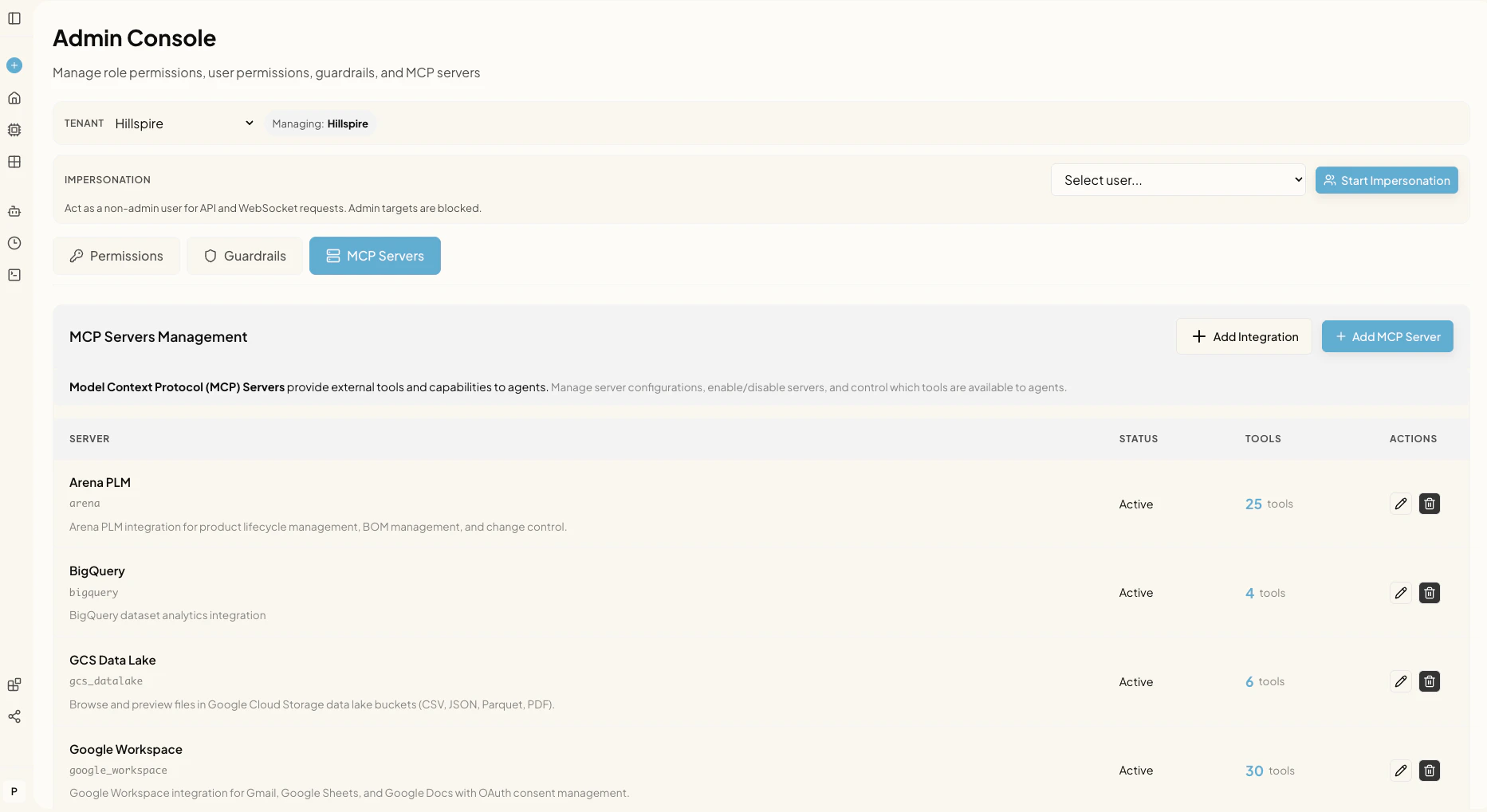
Admin Console, MCP Servers tab. Available to admins. Lists configured MCP servers, surfaces whether each one is active, and lets admins add or edit tenant integrations.
To edit an integration that’s already been configured, go to the Admin Console, MCP Servers tab (shown in the screenshot above) and click the pencil icon next to the integration you want to update. The edit modal shows a confirmation dialog that lists how many users will be affected. Changing the auth method or extra parameters invalidates affected users’ credentials so they can re-link cleanly.For setup details on each connector, browse the Supported integrations group in the sidebar. To add a connector that Aperium does not ship out of the box, see Custom integrations.