Connect Aperium to Outlook Mail, Calendar, and OneDrive through OAuth — commercial and GCC High clouds.
The Microsoft 365 integration lets users link their personal Microsoft account to Aperium so agents can read and act on their Outlook mail, calendar, and OneDrive files. Setup happens in two places: register an app in the Microsoft Entra admin center, then paste the credentials into the Aperium admin onboarding flow or the Admin Console’s MCP Servers tab.Microsoft 365 is a layered connection: the admin registers the OAuth app once for the tenant, and each user links their own Microsoft account on top of it. Agents act as the linked user, with that user’s own Microsoft permissions.
Outlook mail — search and read messages, read attachments
Calendar — search events, list calendars, read event detail
Shared calendars — read calendars others shared with the user (opt-in)
OneDrive — search files, read file content and metadata
Analytics — query Outlook, calendar, and OneDrive as tabular datasets
Write — approval-gated
Outlook mail — draft and send messages
Calendar — create, update, and cancel events (own and shared, opt-in)
OneDrive — upload files (incl. large uploads), create folders, delete
Every write tool is approval-gated. When an agent proposes a write, Aperium pauses and shows the exact change for a human to approve before anything is sent to Microsoft. Reads run without a prompt.
Aperium supports two Microsoft clouds, each configured as a separate profile: Commercial (graph.microsoft.com) and GCC High (graph.microsoft.us, for US government tenants). You pick the cloud with the Cloud selector on the connect form. Register the app in the matching Azure environment — the commercial Azure portal or the Azure Government portal for GCC High.
Access to the Azure portal (commercial) or the Azure Government portal (GCC High) for your organization, with rights to create app registrations in Microsoft Entra ID.
Your Aperium deployment URL (for example https://app.your-company.com).
Sign in to the Azure portal and search for Microsoft Entra ID (formerly Azure Active Directory). Open App registrations and click + New registration.
Name: Anything descriptive (for example Aperium Microsoft 365 Integration).
Supported account types: Select Accounts in any organizational directory (Any Microsoft Entra ID tenant) and personal Microsoft accounts. Aperium uses the multi-tenant common endpoint, so this option is required for most deployments.
Redirect URI: Choose Web for the platform and enter:
For local development, use http://localhost:8080/api/v1/microsoft365/auth/callback.
Click Register.
2
Copy the Application (client) ID
On the app’s Overview page, copy the Application (client) ID. This is the value you’ll paste into Aperium as OAuth Client ID later.
3
Create a client secret
In the left panel of the app, open Certificates & secrets, switch to the Client secrets tab, and click + New client secret.
Add a description (for example Aperium).
Pick an expiry. 24 months is a common choice; plan to rotate the secret before it expires.
Click Add. Copy the Value column immediately. This is what you paste into Aperium as OAuth Client Secret.The Value is shown only once. If you navigate away or refresh, you’ll have to create a new secret. The Secret ID is just Azure’s internal identifier for the secret entry; you don’t need it.
4
Add Microsoft Graph API permissions
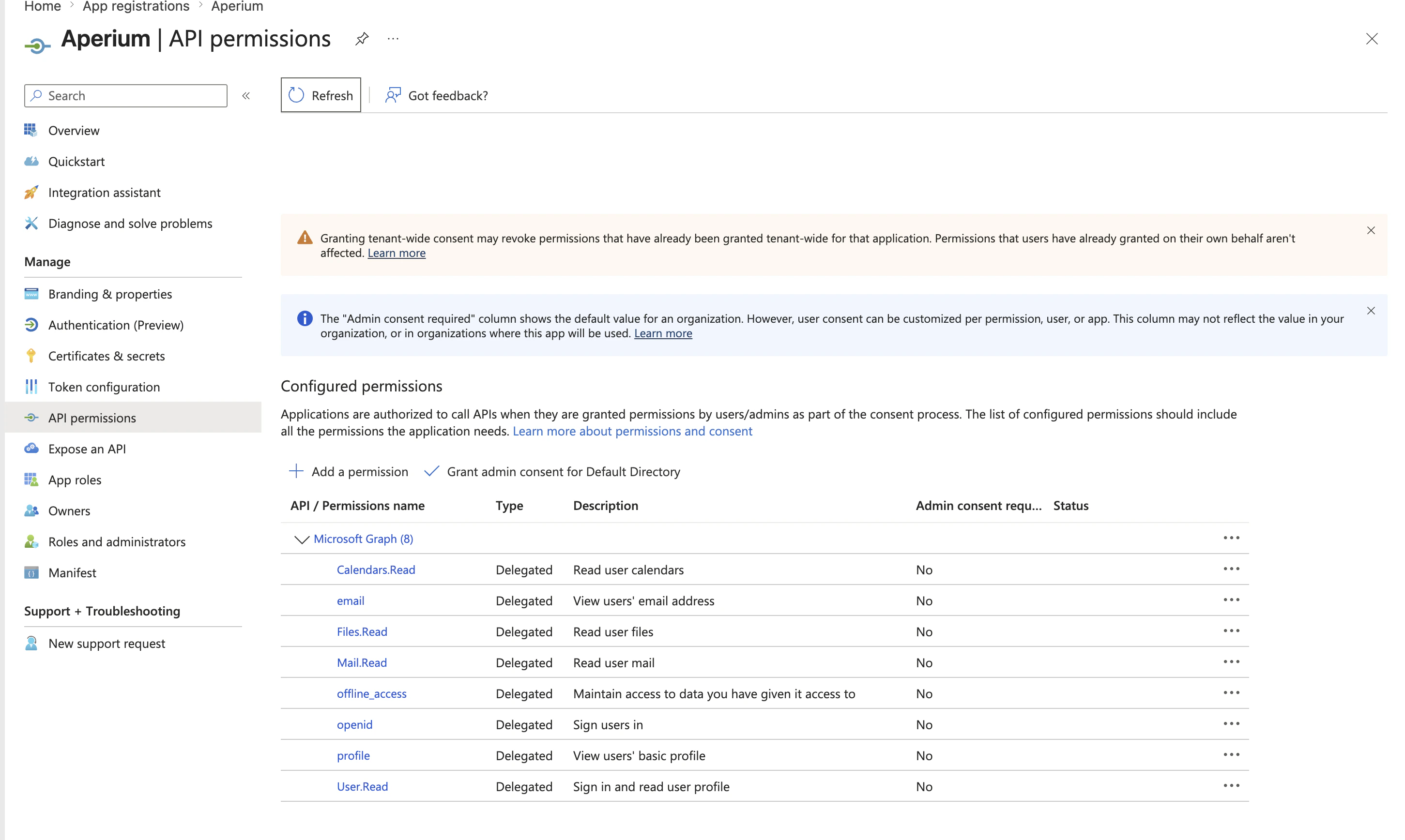
Open the API permissions tab, click + Add a permission, choose Microsoft Graph, and pick Delegated permissions. Add every permission below.Identity (always required)
openid
profile
offline_access
User.Read
Outlook Mail
Mail.Read
Mail.Send
Outlook Calendar
Calendars.Read
Calendars.ReadWrite
OneDrive
Files.Read
Files.ReadWrite
Click Add permissions. If your tenant requires admin consent for any of these permissions, click Grant admin consent for <your tenant> and confirm.Shared-calendar access (reading or writing calendars other people shared with the user) is opt-in and off by default. When a user enables it, Aperium additionally requests Calendars.Read.Shared / Calendars.ReadWrite.Shared. Add those permissions here too if you want shared-calendar tools available.
The API permissions page after adding the required Microsoft Graph delegated permissions.
Aperium uses delegated permissions only; there’s no application-permissions flow. The standard Microsoft Graph API is used, so no extra APIs need to be enabled separately.
5
Paste the credentials into Aperium
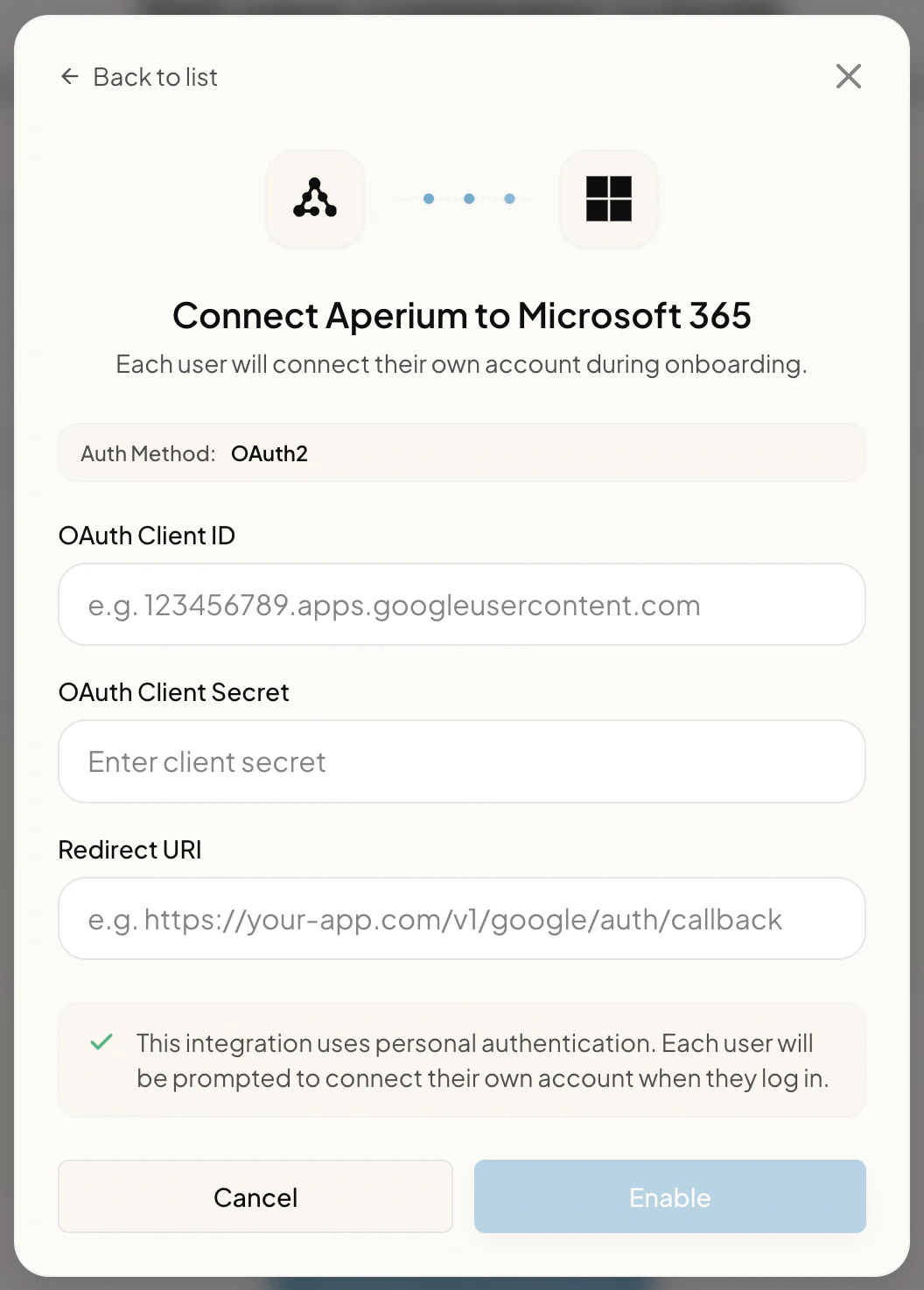
Open Aperium and go to either the admin onboarding flow (first sign-in) or the Admin Console’s MCP Servers tab (any time after). Open the Connect Aperium to Microsoft 365 form and fill in:
Cloud. Choose Commercial or GCC High, matching the Azure environment you registered the app in. This routes OAuth and Microsoft Graph to the correct Microsoft cloud (graph.microsoft.com or graph.microsoft.us). Commercial is the default.
OAuth Client ID. The Application (client) ID copied in step 2.
OAuth Client Secret. The client secret value copied in step 3.
Redirect URI. The same redirect URI you registered in step 1 (for example https://<your-aperium-domain>/api/v1/microsoft365/auth/callback).
Click Enable. Once saved, every user can link their personal Microsoft account from the Integrations page.
The Connect Aperium to Microsoft 365 form in the admin onboarding flow.
After admin setup is complete, users land on the Connect your tools page (during onboarding) or the Integrations page (any time after). They click Link Account on the Microsoft 365 tile, are redirected to Microsoft’s consent screen, review the requested permissions, and click Accept to finish linking.
GCC High. For US government tenants, register the app in the Azure Government portal and select GCC High as the Cloud on the connect form. Aperium then routes OAuth to the US Government login endpoints and Microsoft Graph calls to graph.microsoft.us. The permission set and setup steps are otherwise identical to commercial.
Single-tenant deployments. If you only want users from one specific Entra ID tenant to be able to link their accounts, register the app as single-tenant in step 1 instead. You’ll also need to override Aperium’s default common authority with your tenant’s GUID at deploy time.
Secret rotation. Client secrets expire on the schedule you chose. Add a calendar reminder a few weeks before the expiry to create a new secret and update the credentials in the Admin Console’s MCP Servers tab.