Connect Aperium to Onyx knowledge base search across Confluence, Drive, Slack, GitHub, Jira, and 40+ other sources.
Experimental connector. Onyx is served by Aperium’s omni plugin, which is currently experimental. The customer-facing tile and forms still read “Onyx” and the setup below is unchanged, but the underlying integration and its tool surface may change. Pilot it before relying on it for production workflows.
Onyx is an open-source knowledge-base platform that ingests and indexes content from across a company’s tools (Confluence, Google Drive, Slack, GitHub, Jira, Notion, and 40+ other connectors) and exposes a unified search and Q&A layer over all of it. Connecting Onyx to Aperium gives agents access to that combined index, so they can answer questions and pull source material from every system Onyx is wired to without Aperium needing direct connectors to each one. The connection is read-only: agents search and fetch from the index but never write to it.
Onyx is sometimes deployed under a different brand name. For Relativity Space, Onyx has been white-labeled as Omni. The Aperium tile and form will still say “Onyx”, but everywhere this page mentions the Onyx URL or Onyx personal token, you can substitute your Omni instance and the tokens you generate inside Omni.
Onyx is a tenant-wide integration with a required personal token. The setup happens in two stages:
Admin sets the Onyx URL once for the tenant, in the admin onboarding flow or the Admin Console’s MCP Servers tab.
Each user then adds their own Onyx API key (Personal Access Token) from the Integrations page before they can use the integration. Aperium calls Onyx as the user, using their personal token, so Onyx-side permissions and audit trails follow each user’s identity.
There is no shared admin API key for Onyx; the URL is the only tenant-level setting.
The URL is the base host where your Onyx instance is reachable. For self-hosted Onyx, this is whatever URL your team accesses Onyx at, for example https://onyx.your-company.com. For Onyx Cloud, the default is https://cloud.onyx.app/mcp.For Relativity Space, use your Omni URL.
2
Open the Onyx setup form in Aperium
Open Aperium and go to either the admin onboarding flow (first sign-in) or the Admin Console’s MCP Servers tab (any time after). Open the Connect Aperium to Onyx form.
3
Enter the Onyx URL and connect
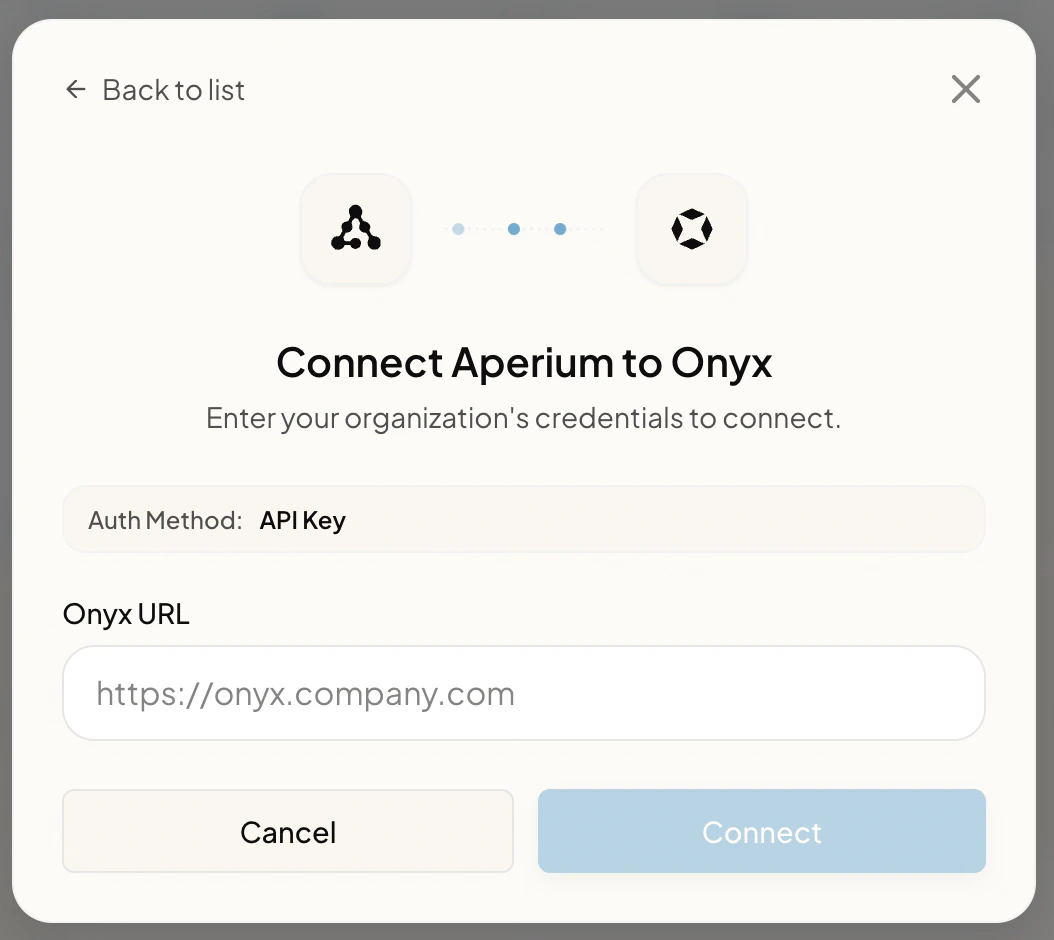
Paste the URL into the Onyx URL field and click Connect. Aperium stores the URL against your tenant.
The Connect Aperium to Onyx form in the admin onboarding flow.
Once saved, the integration shows up on every user’s Integrations page with an Add personal button. Each user must complete the next section before they can use Onyx tools.
Every user has to add their own Onyx Personal Access Token in Aperium. Aperium uses that token to call Onyx on their behalf, so the user only sees content they’re allowed to see in Onyx.
1
Generate a Personal Access Token in Onyx
Sign in to your Onyx (or Omni) instance and create a token. There are two paths, depending on how the Onyx instance is configured:
Settings > Accounts & Access > Personal Access Token, or
Admin Panel > API Keys (if your admin generates tokens for you).
Onyx’s own documentation on this lives at docs.onyx.app/admins/user_management/api_keys.Tip: set the token’s expiration to never if your security policy allows it. Otherwise the integration will silently stop working when the token expires and you’ll need to repeat this step.Copy the token value as soon as it’s generated. Onyx only shows it once.
2
Add the token in Aperium
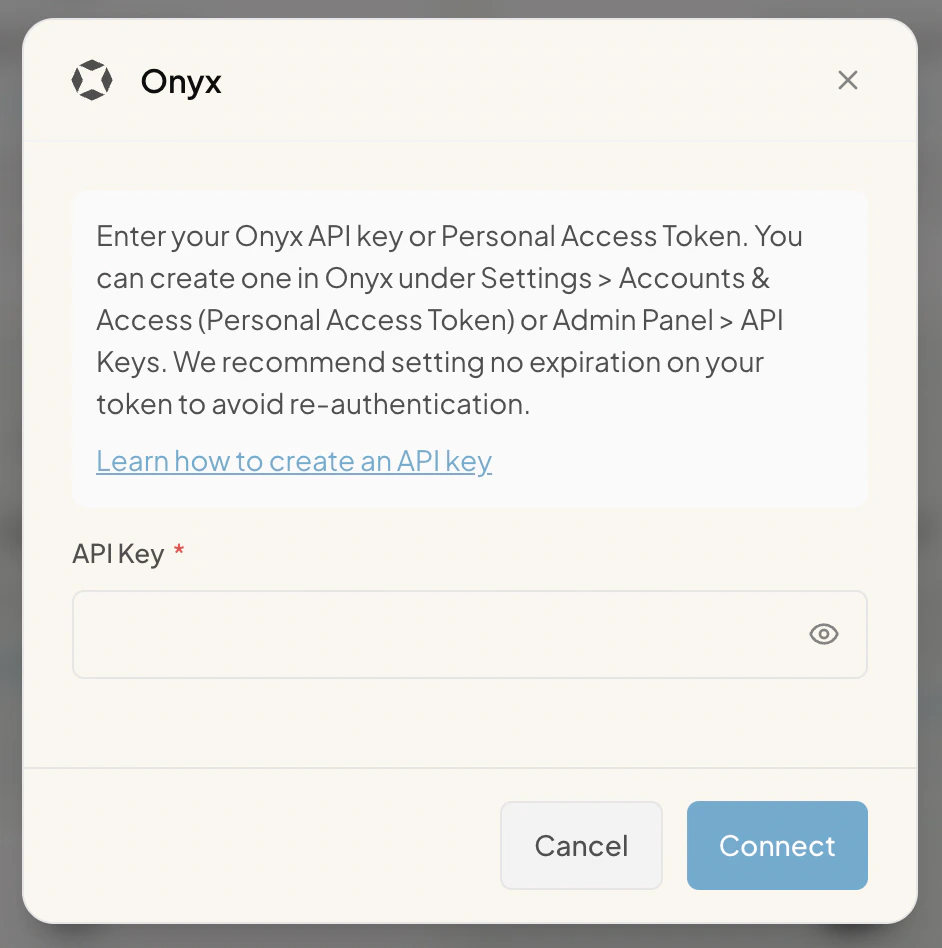
Open the Integrations page in Aperium, find the Onyx tile, and click Add personal. Paste your token into the API Key field and click Connect.Aperium stores the token encrypted, scoped to your user account.
The Onyx personal API key modal on the user-facing Integrations page.
3
Verify the connection
After saving, the Onyx tile should switch from Add personal to a connected state. From there, ask an agent something that can be answered from your knowledge base (“find the latest design doc on X”, “summarize last quarter’s incident postmortems”) to confirm tools are working.
Token rotation. If you regenerate your token in Onyx, return to the Integrations page in Aperium and click Add personal again to paste the new value. The old token will stop working as soon as Onyx invalidates it.
Changing the Onyx URL. If an admin changes the Onyx URL on the tenant later, every user’s stored token is invalidated and users will see the integration return to the Add personal state. Each user needs to re-paste their token after a URL change.
No shared admin token. Aperium does not support a single shared API key for Onyx at the tenant level. The URL is tenant-wide; tokens are always per user.