> ## Documentation Index
> Fetch the complete documentation index at: https://docs.aperium.apps.hillspire.com/llms.txt
> Use this file to discover all available pages before exploring further.
# Slack Workspace
> Connect Aperium to Slack channels, messages, files, and search through OAuth.
The Slack Workspace integration lets users link their personal Slack account to Aperium so agents can read channels, search messages, send chats, and work with files on behalf of that user. Setup happens in two places: create a Slack app at api.slack.com and configure its OAuth scopes, then paste the credentials into the Aperium admin onboarding flow or the Admin Console's MCP Servers tab.
Aperium uses **user tokens** (not bot tokens). Each user authenticates with their own Slack account, and Aperium operates under their identity and permissions. You do not need a bot user, event subscriptions, slash commands, or interactivity for this integration.
## What you'll need
* An account at [api.slack.com/apps](https://api.slack.com/apps) with permission to create apps for your workspace.
* Your Aperium deployment URL (for example `https://app.your-company.com`).
## Setup
Go to [api.slack.com/apps](https://api.slack.com/apps) and click **Create New App**.
* Choose **From scratch**.
* **App Name:** Anything descriptive (for example `Aperium`).
* **Pick a workspace:** Select the workspace you'll develop the app in.
Click **Create App**.
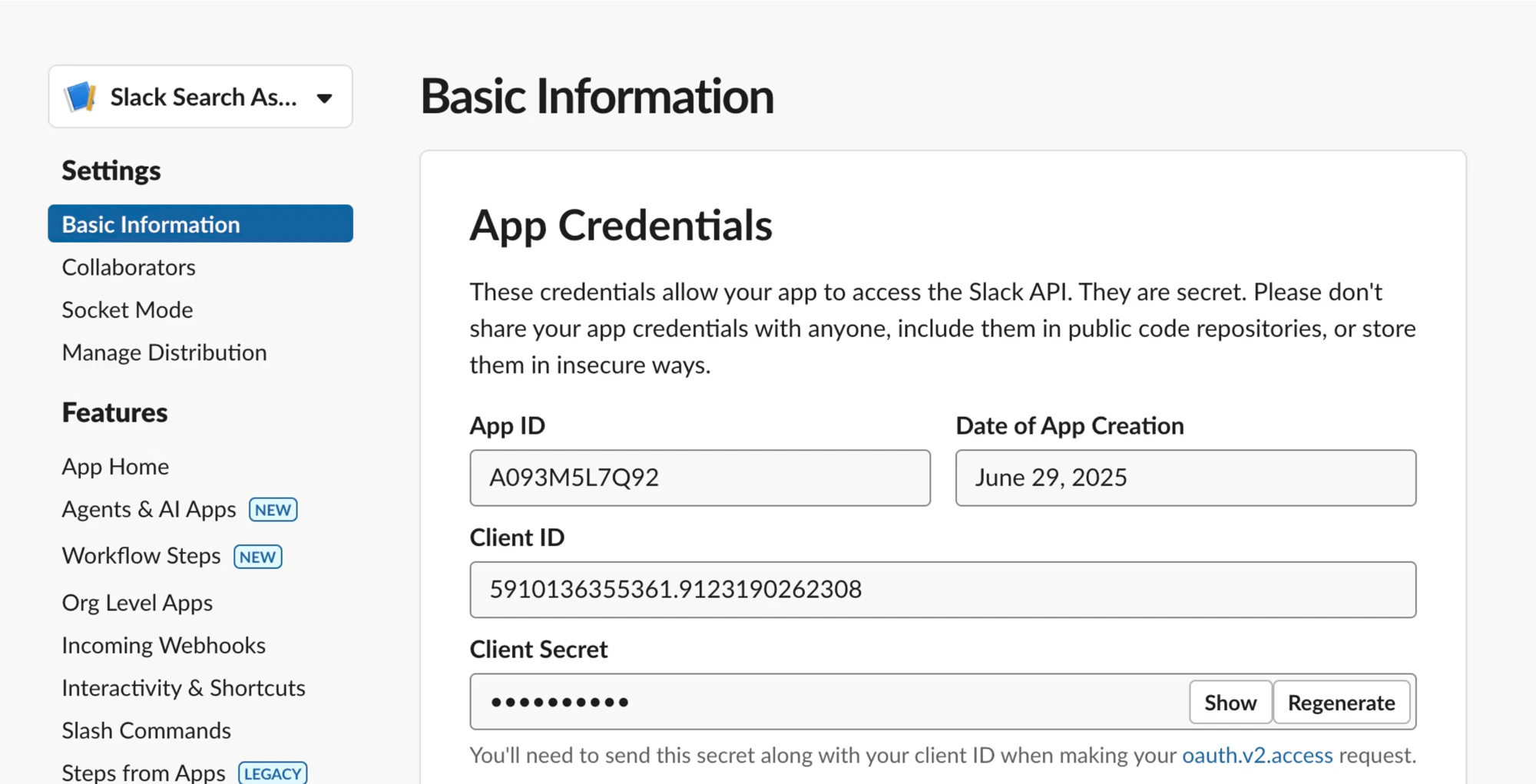
On the app's **Basic Information** page, scroll to **App Credentials**. You'll come back here in the last step to copy:
* **Client ID**
* **Client Secret** (click **Show** to reveal)
 In the left sidebar of the Slack app, open **OAuth & Permissions**. Under **Redirect URLs**, click **Add New Redirect URL** and enter:
```
https:///api/v1/slack/auth/callback
```
For local development, use `http://localhost:8080/api/v1/slack/auth/callback`.
Click **Add**, then **Save URLs**.
Stay on **OAuth & Permissions** and scroll to **Scopes**. Aperium uses **user tokens only**, so add every scope below to the **User Token Scopes** list. Leave the **Bot Token Scopes** list empty.
**Channels and conversations**
* `channels:read`
* `groups:read`
* `im:read`
* `mpim:read`
**History**
* `channels:history`
* `groups:history`
* `im:history`
* `mpim:history`
**Search**
* `search:read` (user token only)
**Messaging**
* `chat:write`
**Files**
* `files:read`
* `files:write`
**Users**
* `users:read`
**Reactions**
* `reactions:read`
* `reactions:write`
Aperium requests these scopes incrementally during the OAuth flow based on which tools a user uses, so users only see the prompts they actually need.
Still on **OAuth & Permissions**, scroll to the top and click **Install to Workspace**. Review the requested permissions and click **Allow**. This generates the OAuth credentials you'll paste into Aperium in the next step.
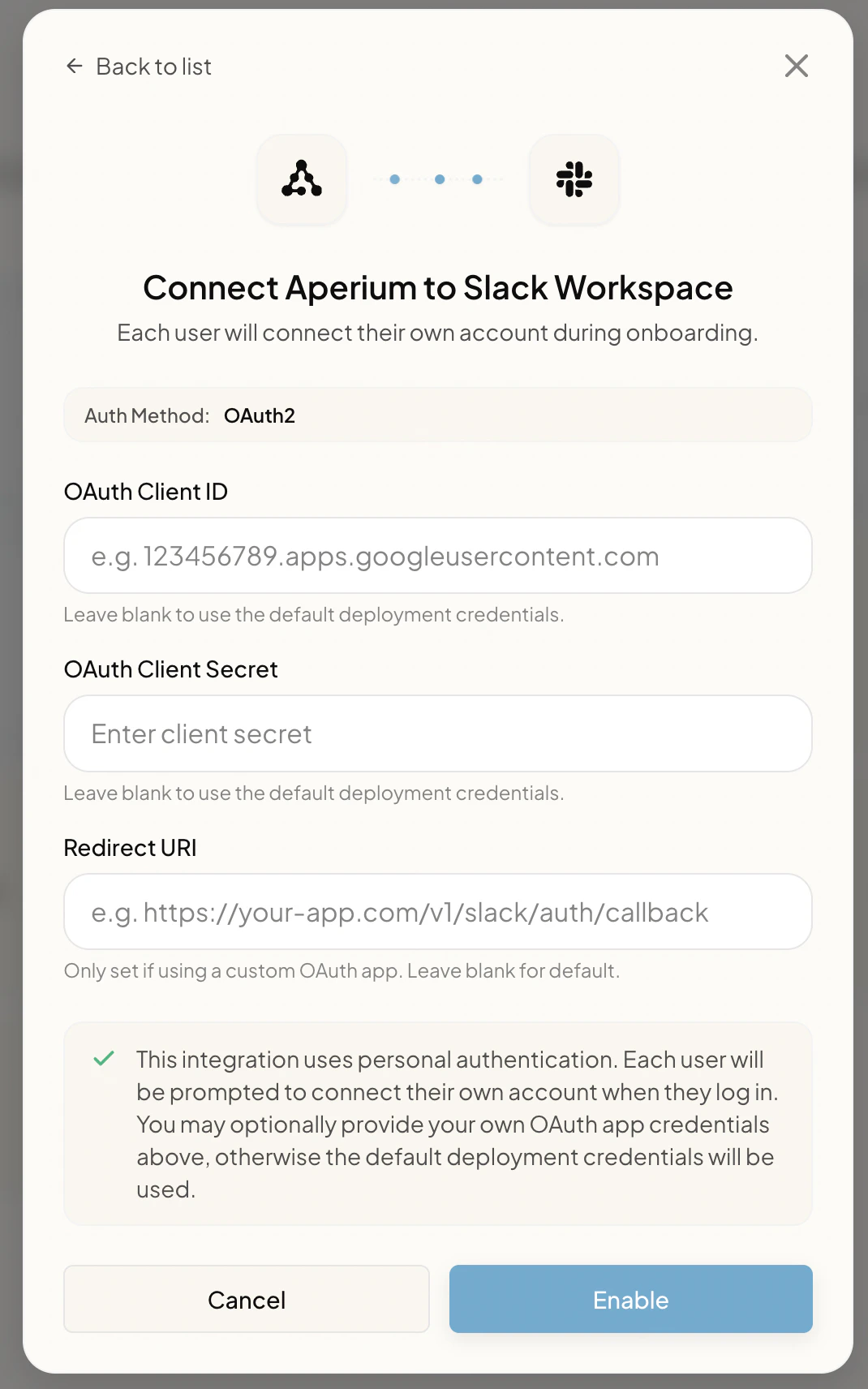
Open Aperium and go to either the **admin onboarding flow** (first sign-in) or the **Admin Console's MCP Servers tab** (any time after). Open the **Connect Aperium to Slack Workspace** form and fill in:
* **OAuth Client ID.** The Client ID from the **Basic Information** page in step 2.
* **OAuth Client Secret.** The Client Secret from the same page.
* **Redirect URI.** The same redirect URI you registered in step 3 (for example `https:///api/v1/slack/auth/callback`).
Click **Enable**. Once saved, every user can link their personal Slack account from the Integrations page.
In the left sidebar of the Slack app, open **OAuth & Permissions**. Under **Redirect URLs**, click **Add New Redirect URL** and enter:
```
https:///api/v1/slack/auth/callback
```
For local development, use `http://localhost:8080/api/v1/slack/auth/callback`.
Click **Add**, then **Save URLs**.
Stay on **OAuth & Permissions** and scroll to **Scopes**. Aperium uses **user tokens only**, so add every scope below to the **User Token Scopes** list. Leave the **Bot Token Scopes** list empty.
**Channels and conversations**
* `channels:read`
* `groups:read`
* `im:read`
* `mpim:read`
**History**
* `channels:history`
* `groups:history`
* `im:history`
* `mpim:history`
**Search**
* `search:read` (user token only)
**Messaging**
* `chat:write`
**Files**
* `files:read`
* `files:write`
**Users**
* `users:read`
**Reactions**
* `reactions:read`
* `reactions:write`
Aperium requests these scopes incrementally during the OAuth flow based on which tools a user uses, so users only see the prompts they actually need.
Still on **OAuth & Permissions**, scroll to the top and click **Install to Workspace**. Review the requested permissions and click **Allow**. This generates the OAuth credentials you'll paste into Aperium in the next step.
Open Aperium and go to either the **admin onboarding flow** (first sign-in) or the **Admin Console's MCP Servers tab** (any time after). Open the **Connect Aperium to Slack Workspace** form and fill in:
* **OAuth Client ID.** The Client ID from the **Basic Information** page in step 2.
* **OAuth Client Secret.** The Client Secret from the same page.
* **Redirect URI.** The same redirect URI you registered in step 3 (for example `https:///api/v1/slack/auth/callback`).
Click **Enable**. Once saved, every user can link their personal Slack account from the Integrations page.
 ## What users see
After admin setup is complete, users land on the **Connect your tools** page (during onboarding) or the **Integrations** page (any time after). They click **Link Account** on the Slack Workspace tile, are redirected to Slack's consent screen, review the requested scopes, and click **Allow** to finish linking.
Users can link more than one Slack workspace if they belong to several; each workspace is tracked as a separate connection.
## Notes
* **Enterprise Grid.** No extra app configuration is required for Enterprise Grid customers. Aperium detects an Enterprise Grid workspace from the token response after OAuth and tags the connection accordingly. You don't need to distribute the app, set up federated identity, or change the app's installation model.
* **App distribution.** Because user tokens are workspace-scoped, you don't need to publish the app to the Slack App Directory or enable distribution. Keep the app private to your workspace.
* **Bot tokens.** Aperium does not use bot tokens. If you accidentally add scopes under **Bot Token Scopes**, the integration won't use them; remove them to keep the consent screen clean for users.
## What users see
After admin setup is complete, users land on the **Connect your tools** page (during onboarding) or the **Integrations** page (any time after). They click **Link Account** on the Slack Workspace tile, are redirected to Slack's consent screen, review the requested scopes, and click **Allow** to finish linking.
Users can link more than one Slack workspace if they belong to several; each workspace is tracked as a separate connection.
## Notes
* **Enterprise Grid.** No extra app configuration is required for Enterprise Grid customers. Aperium detects an Enterprise Grid workspace from the token response after OAuth and tags the connection accordingly. You don't need to distribute the app, set up federated identity, or change the app's installation model.
* **App distribution.** Because user tokens are workspace-scoped, you don't need to publish the app to the Slack App Directory or enable distribution. Keep the app private to your workspace.
* **Bot tokens.** Aperium does not use bot tokens. If you accidentally add scopes under **Bot Token Scopes**, the integration won't use them; remove them to keep the consent screen clean for users.