> ## Documentation Index
> Fetch the complete documentation index at: https://docs.aperium.apps.hillspire.com/llms.txt
> Use this file to discover all available pages before exploring further.
# Overview
> How roles, groups, and policies work together to control what users can do in Aperium.
Aperium decides what someone can do based on three things: their **role**, the **groups** they belong to, and the **policies** attached to those groups. Roles set the broad shape of what a user can do across the platform; groups attach fine-grained access to individual MCP servers and datasets on top.
**Aperium always respects the underlying system's permissions first.** Whatever a user can do in Salesforce, NetSuite, BigQuery, Google Workspace, or any other connected system is the ceiling on what they can do through Aperium. Groups and policies in Aperium can only make that ceiling **more restrictive**, never less. If someone doesn't have access to a record in the source system, no group policy in Aperium will give it to them.
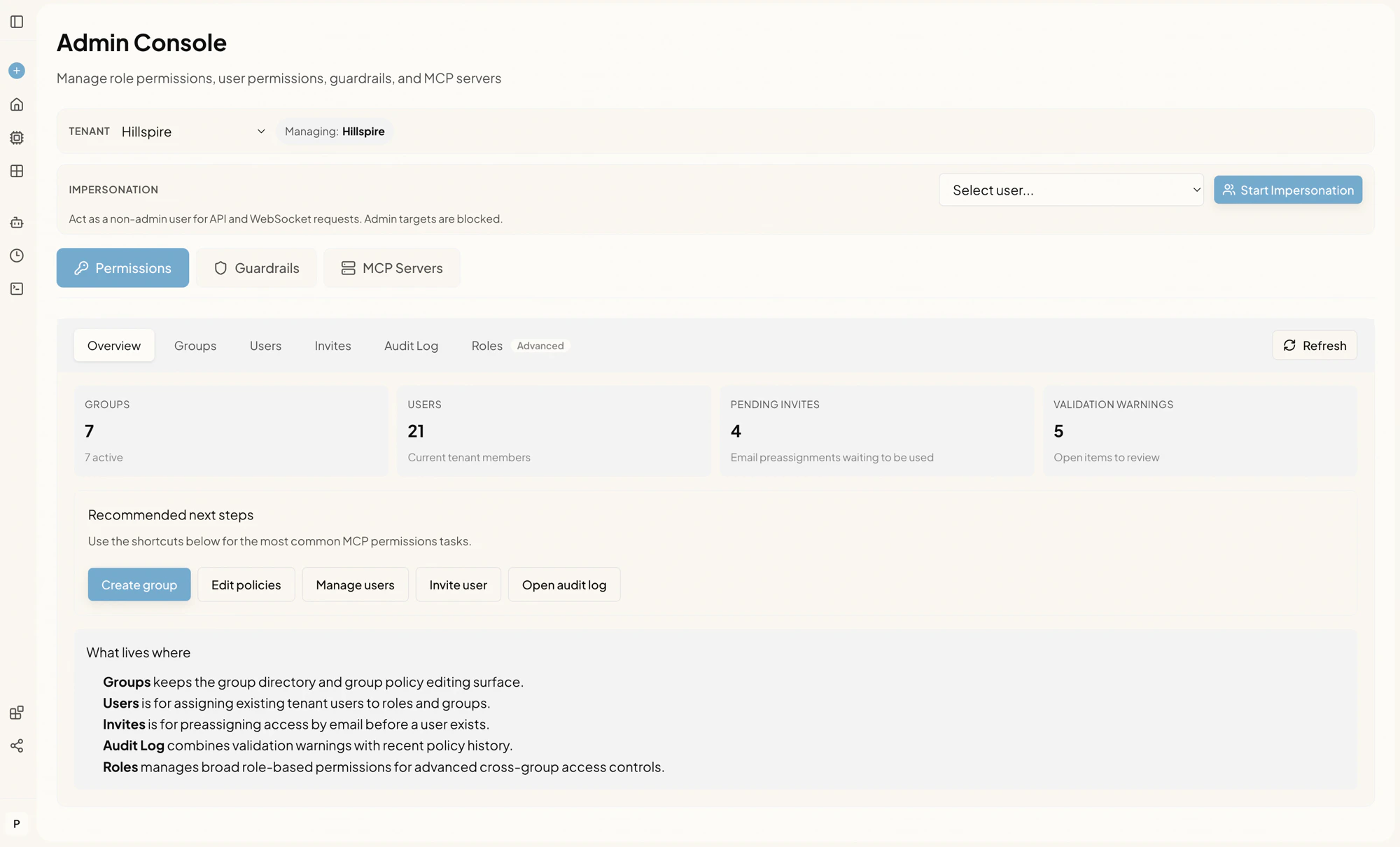
Everything on this page lives in the **Admin Console** under the **Permissions** tab. From there you can switch between sub-tabs for the day-to-day workflows: **Overview**, **Groups**, **Users**, **Invites**, **Audit Log**, and **Roles**.
 ## Roles
Aperium recognizes four roles. A user's role is a single value, set on the **Users** sub-tab (or pre-assigned through invites).
| Role | What this person can do |
| --------------- | -------------------------------------------------------------------------------------------------------------------------------------------------------------------------- |
| **Viewer** | Read-only. Can browse agents, skills, and integrations but can't run tools or change anything. |
| **User** | The default role for end users. Can chat with agents, create and run skills, link their own integration credentials, and use the MCP servers their groups grant access to. |
| **Admin** | Tenant administrator. Everything a user can do, plus the Admin Console: managing groups, policies, users, invites, integrations, and guardrails for one tenant. |
| **Super admin** | Cross-tenant administrator. Everything an admin can do, plus the tenant switcher. The only role that can grant **super admin** to other users. |
Admins can promote or demote users between **viewer**, **user**, and **admin**. Only an existing **super admin** can grant another user the **super admin** role.
## Groups
Groups are the bridge between your identity provider (Okta, Auth0, Microsoft Entra, etc.) and Aperium's permission model.
* Each Aperium group maps to an external group name from your IdP. When a user signs in, Aperium reads the groups from their identity token and adds them to the matching Aperium groups automatically. There's no manual sync to run.
* A group has a display name (what admins see in the UI) and a system key (a stable identifier matching your IdP claim, like `fpt-developers` or `hillspire-finance`).
* You can also drop users into groups directly from the **Users** tab if your IdP doesn't expose the group claim you need.
A user can belong to **zero, one, or many groups**. With zero groups, they only get the access that their role provides. In multiple groups, their effective access is the union of every group's policy (more on that below).
## Policies
A **policy** is the set of rules attached to a group that decides what its members can do on each MCP server. Every policy controls two things per server:
* **Access level.** **No access**, **Read only**, or **Read + write**. Determines whether members of the group can read data from the server, write to it, or neither.
* **Dataset/scope rules.** For connectors that expose multiple distinct units (BigQuery datasets, Postgres schemas, GCS data lake buckets), you can allowlist exactly which units the group is allowed to query.
Policies are edited from the **Groups** sub-tab by clicking **Edit policy** on a group. See [Groups and policies](/admins/access-control/groups) for details.
## How effective access is calculated
When a user makes a request, Aperium combines every signal that applies to them:
1. **The upstream system's own permissions come first.** Every tool call ultimately runs against the connected system (Salesforce, NetSuite, BigQuery, etc.) using credentials with their own access controls. Aperium can only narrow that access, never widen it.
2. **Admins and super admins** automatically get full access to every server inside Aperium. Their Aperium policy is implicit, but they're still bounded by what the upstream credentials let them do.
3. For everyone else, Aperium gathers the policies of every group the user belongs to.
4. Across those groups, Aperium picks the **most permissive access level** (so if any group grants **Read + write** on Salesforce, the user gets read + write on Salesforce, even if other groups only grant read).
5. Dataset/scope rules merge the same way: every dataset allowlisted by any group becomes accessible.
6. Operational gates still apply on top. If a server is disabled, requires personal credentials the user hasn't provided, or fails its own auth check, the request still fails regardless of policy.
This means there's no "deny" rule to fight against an "allow" rule from a different group. To restrict access, remove the user from the group that grants it, or change that group's policy.
## The Permissions sub-tabs
## Roles
Aperium recognizes four roles. A user's role is a single value, set on the **Users** sub-tab (or pre-assigned through invites).
| Role | What this person can do |
| --------------- | -------------------------------------------------------------------------------------------------------------------------------------------------------------------------- |
| **Viewer** | Read-only. Can browse agents, skills, and integrations but can't run tools or change anything. |
| **User** | The default role for end users. Can chat with agents, create and run skills, link their own integration credentials, and use the MCP servers their groups grant access to. |
| **Admin** | Tenant administrator. Everything a user can do, plus the Admin Console: managing groups, policies, users, invites, integrations, and guardrails for one tenant. |
| **Super admin** | Cross-tenant administrator. Everything an admin can do, plus the tenant switcher. The only role that can grant **super admin** to other users. |
Admins can promote or demote users between **viewer**, **user**, and **admin**. Only an existing **super admin** can grant another user the **super admin** role.
## Groups
Groups are the bridge between your identity provider (Okta, Auth0, Microsoft Entra, etc.) and Aperium's permission model.
* Each Aperium group maps to an external group name from your IdP. When a user signs in, Aperium reads the groups from their identity token and adds them to the matching Aperium groups automatically. There's no manual sync to run.
* A group has a display name (what admins see in the UI) and a system key (a stable identifier matching your IdP claim, like `fpt-developers` or `hillspire-finance`).
* You can also drop users into groups directly from the **Users** tab if your IdP doesn't expose the group claim you need.
A user can belong to **zero, one, or many groups**. With zero groups, they only get the access that their role provides. In multiple groups, their effective access is the union of every group's policy (more on that below).
## Policies
A **policy** is the set of rules attached to a group that decides what its members can do on each MCP server. Every policy controls two things per server:
* **Access level.** **No access**, **Read only**, or **Read + write**. Determines whether members of the group can read data from the server, write to it, or neither.
* **Dataset/scope rules.** For connectors that expose multiple distinct units (BigQuery datasets, Postgres schemas, GCS data lake buckets), you can allowlist exactly which units the group is allowed to query.
Policies are edited from the **Groups** sub-tab by clicking **Edit policy** on a group. See [Groups and policies](/admins/access-control/groups) for details.
## How effective access is calculated
When a user makes a request, Aperium combines every signal that applies to them:
1. **The upstream system's own permissions come first.** Every tool call ultimately runs against the connected system (Salesforce, NetSuite, BigQuery, etc.) using credentials with their own access controls. Aperium can only narrow that access, never widen it.
2. **Admins and super admins** automatically get full access to every server inside Aperium. Their Aperium policy is implicit, but they're still bounded by what the upstream credentials let them do.
3. For everyone else, Aperium gathers the policies of every group the user belongs to.
4. Across those groups, Aperium picks the **most permissive access level** (so if any group grants **Read + write** on Salesforce, the user gets read + write on Salesforce, even if other groups only grant read).
5. Dataset/scope rules merge the same way: every dataset allowlisted by any group becomes accessible.
6. Operational gates still apply on top. If a server is disabled, requires personal credentials the user hasn't provided, or fails its own auth check, the request still fails regardless of policy.
This means there's no "deny" rule to fight against an "allow" rule from a different group. To restrict access, remove the user from the group that grants it, or change that group's policy.
## The Permissions sub-tabs
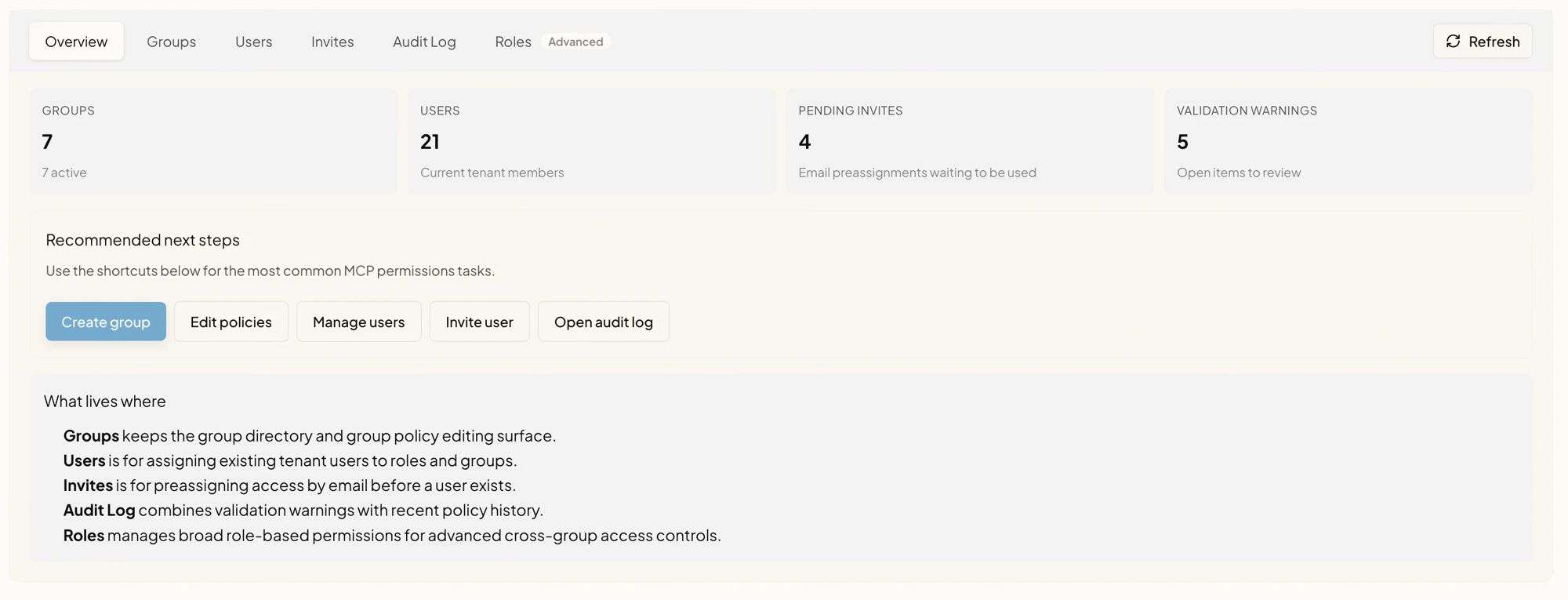 | Sub-tab | What lives there |
| ---------------------- | ------------------------------------------------------------------------------------------------------------------------------------------------------- |
| **Overview** | Top-level counts (groups, users, pending invites, validation warnings) and shortcuts to common tasks. |
| **Groups** | Create, rename, and delete access groups. Edit each group's policy. See [Groups and policies](/admins/access-control/groups). |
| **Users** | Change a user's role and group memberships. Reset a user's onboarding flow. See [Users](/admins/access-control/users). |
| **Invites** | Pre-assign a role and groups to an email so they're applied automatically when that user first signs in. See [Invites](/admins/access-control/invites). |
| **Audit Log** | Chronological record of every permission change. See [Audit log](/admins/access-control/audit-log). |
| **Roles** *(Advanced)* | Cross-group, role-level policies for unusual access patterns. Most teams won't need this; group policies are enough. |
## Validation warnings
The Overview surfaces a count of **validation warnings**. These are configuration items that won't crash anything but will produce confusing user experiences if left unattended. Common examples:
* A group has a policy on a server that no longer exists.
* A group has a policy with an invalid combination of access level and credential mode.
* A server requires personal credentials, but a group has been configured to use shared credentials.
Open the warnings list from the Overview to see and resolve each item. The same problems show up under **Needs review** when you open a group's policy editor.
## Tenant scoping and impersonation
The top of the Admin Console has two extra controls that change what every action below applies to:
* **Tenant selector.** Visible only to super admins. Switches the active tenant context. Every change made afterward applies to the selected tenant.
* **Impersonation.** Lets admins act as a specific non-admin user for API and WebSocket calls so they can reproduce permission issues from that user's perspective. See [Impersonation](/admins/access-control/impersonation).
## Where to go next
Build out your access groups and decide what each one can read or write. See [Groups and policies](/admins/access-control/groups).
Roll users into the right groups and set their roles. See [Users](/admins/access-control/users).
Use [Invites](/admins/access-control/invites) so newcomers land in the right groups on day one.
Use the [Audit log](/admins/access-control/audit-log) to review who changed what and when.
| Sub-tab | What lives there |
| ---------------------- | ------------------------------------------------------------------------------------------------------------------------------------------------------- |
| **Overview** | Top-level counts (groups, users, pending invites, validation warnings) and shortcuts to common tasks. |
| **Groups** | Create, rename, and delete access groups. Edit each group's policy. See [Groups and policies](/admins/access-control/groups). |
| **Users** | Change a user's role and group memberships. Reset a user's onboarding flow. See [Users](/admins/access-control/users). |
| **Invites** | Pre-assign a role and groups to an email so they're applied automatically when that user first signs in. See [Invites](/admins/access-control/invites). |
| **Audit Log** | Chronological record of every permission change. See [Audit log](/admins/access-control/audit-log). |
| **Roles** *(Advanced)* | Cross-group, role-level policies for unusual access patterns. Most teams won't need this; group policies are enough. |
## Validation warnings
The Overview surfaces a count of **validation warnings**. These are configuration items that won't crash anything but will produce confusing user experiences if left unattended. Common examples:
* A group has a policy on a server that no longer exists.
* A group has a policy with an invalid combination of access level and credential mode.
* A server requires personal credentials, but a group has been configured to use shared credentials.
Open the warnings list from the Overview to see and resolve each item. The same problems show up under **Needs review** when you open a group's policy editor.
## Tenant scoping and impersonation
The top of the Admin Console has two extra controls that change what every action below applies to:
* **Tenant selector.** Visible only to super admins. Switches the active tenant context. Every change made afterward applies to the selected tenant.
* **Impersonation.** Lets admins act as a specific non-admin user for API and WebSocket calls so they can reproduce permission issues from that user's perspective. See [Impersonation](/admins/access-control/impersonation).
## Where to go next
Build out your access groups and decide what each one can read or write. See [Groups and policies](/admins/access-control/groups).
Roll users into the right groups and set their roles. See [Users](/admins/access-control/users).
Use [Invites](/admins/access-control/invites) so newcomers land in the right groups on day one.
Use the [Audit log](/admins/access-control/audit-log) to review who changed what and when.